
Guide
Pay per call landing pages: what to build, what to say and what to leave out
By the LeadsRefer team · Updated October 8, 2026 · 10 min read
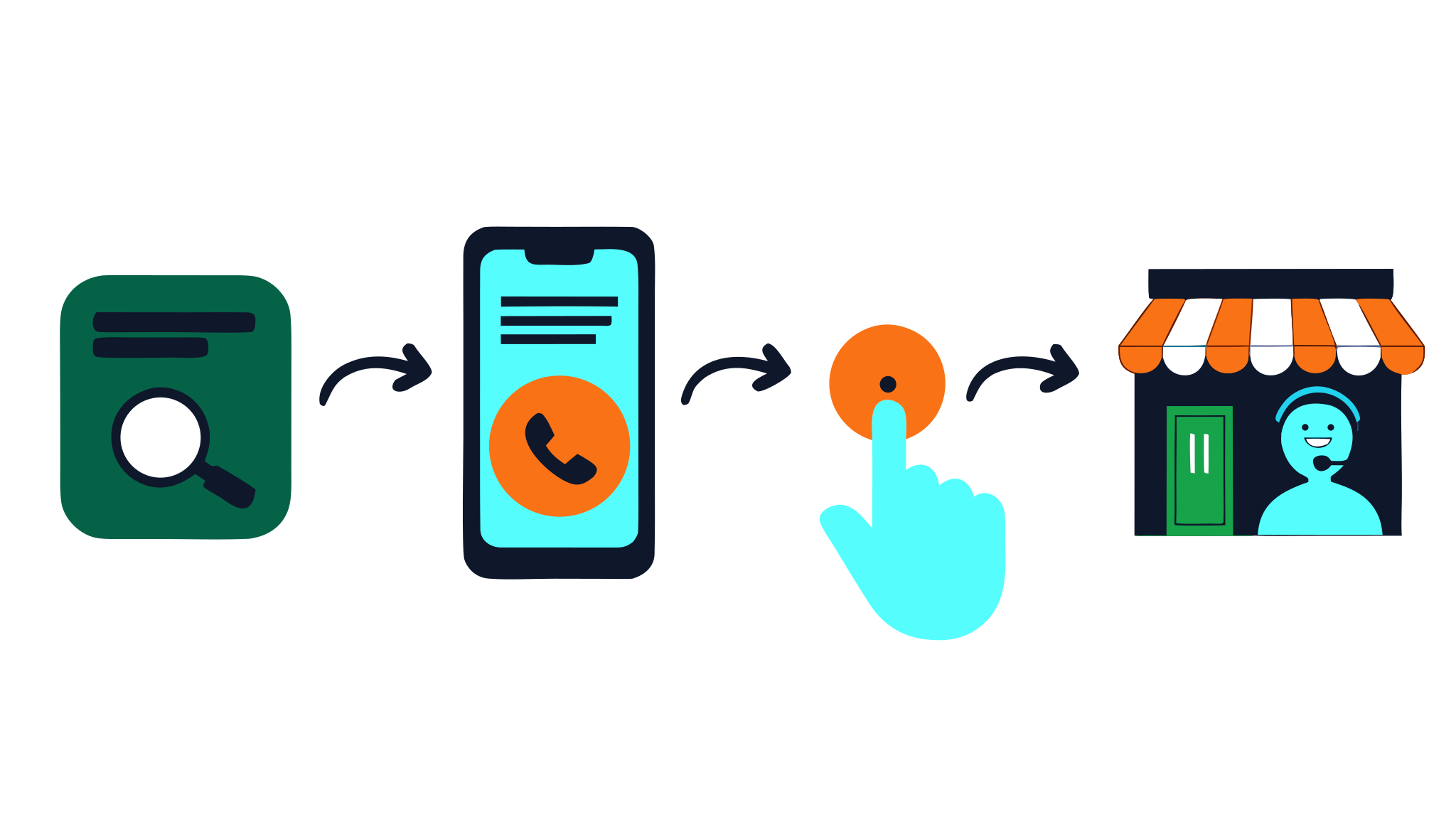
A pay per call landing page has one job: turn a click into a phone call that qualifies. It is not a lead form. There is nothing to submit, no thank-you page and no follow-up email. The visitor either calls or leaves, so everything on the page either helps them decide to call or gets in the way.
This guide explains what such a page needs, in the order a visitor experiences it: matching the ad, putting the call first, saying who you serve and when, what to include and what to leave out, and how to track and test it. It covers how the craft works and promises no results, because those depend on your traffic and the offer. If the model is new to you, start with what pay per call is.
What a pay per call landing page is for
Someone who clicks an ad about a roof leak or a tax bill is asking three quick questions: am I in the right place, can they help me, and how do I reach them. A good page answers all three within seconds and makes calling the easiest next step.
That is a different brief from a lead page. A lead page can ask for details and take its time, because the visitor is willing to type. A call page works with people who would rather talk, often on a phone, often in a hurry, so it should be short, clear and built around one action.
Do you need a landing page at all?
Not always. There are three common setups:
- A page you own: your own content or comparison page that carries your tracking number. It gives you the most control and the most to build.
- A call-focused ad: on platforms that allow it, an ad format that leads straight to a call, with no page in between. It is the least to build and gives you the least to work with.
- A simple call page: on LeadsRefer, if you have no page of your own, your tracking link sends the click to a minimal page that shows your tracking number as a tap-to-call button.
What you should not do is send traffic to the advertiser's own website. It shows the advertiser's own phone number, so any call it produces cannot be credited to you. The number on the page is what decides who is paid.
Match the page to the ad
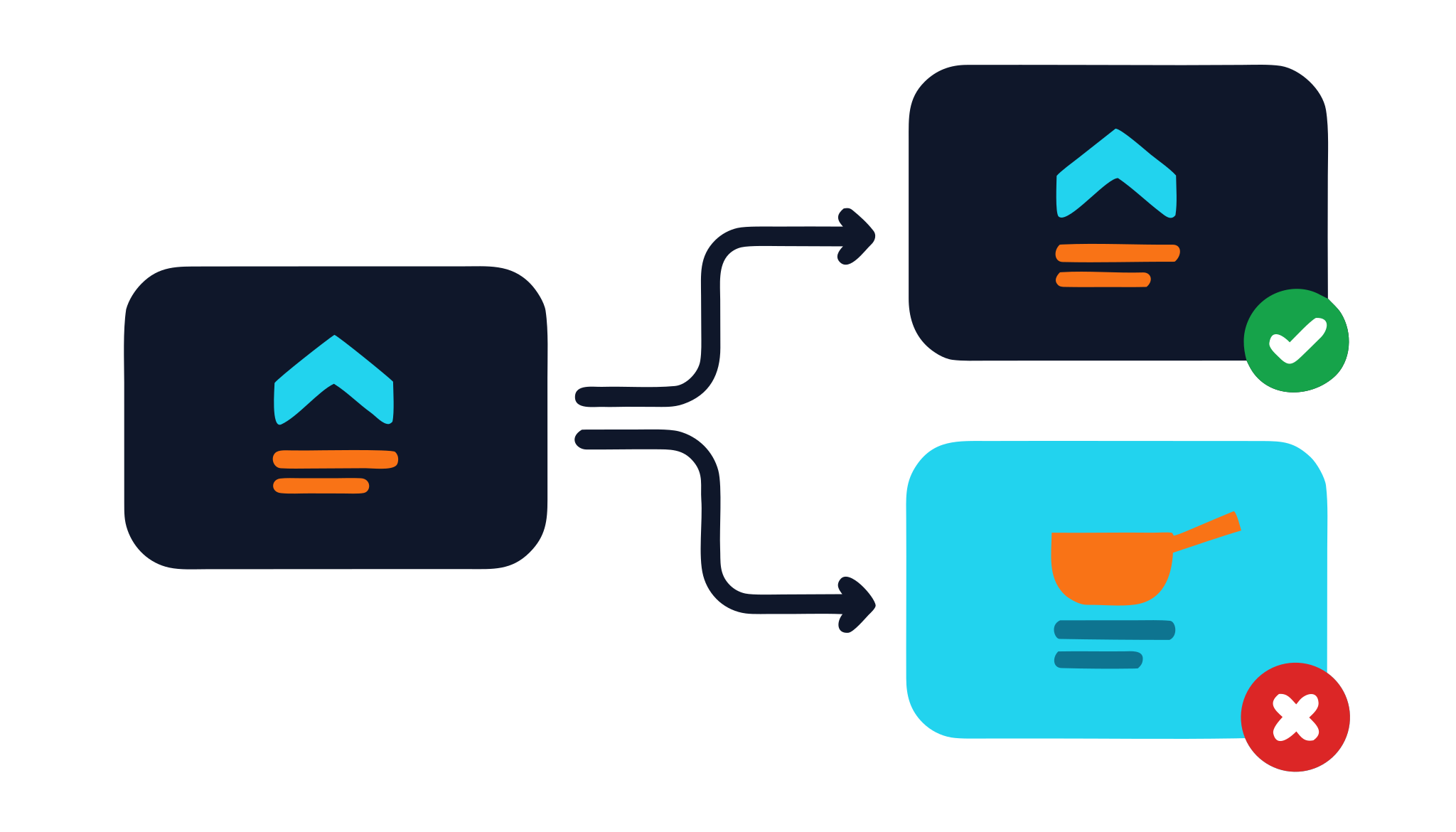
The first thing a visitor checks is whether the page continues the ad. If the ad promised help with a roof leak and the page opens with a general home services banner, a share of visitors will leave before they read further.
- Open with a headline that repeats the problem or service in the ad's own words.
- Use the same category, the same area and the same tone. Do not promise something on the page that the ad did not.
- Make one page for each ad group or intent, not one page for everything. A visitor searching for emergency help and one comparing options want different things.
- Keep to what the offer allows. Its terms say which claims and wording are acceptable.
Put the call first
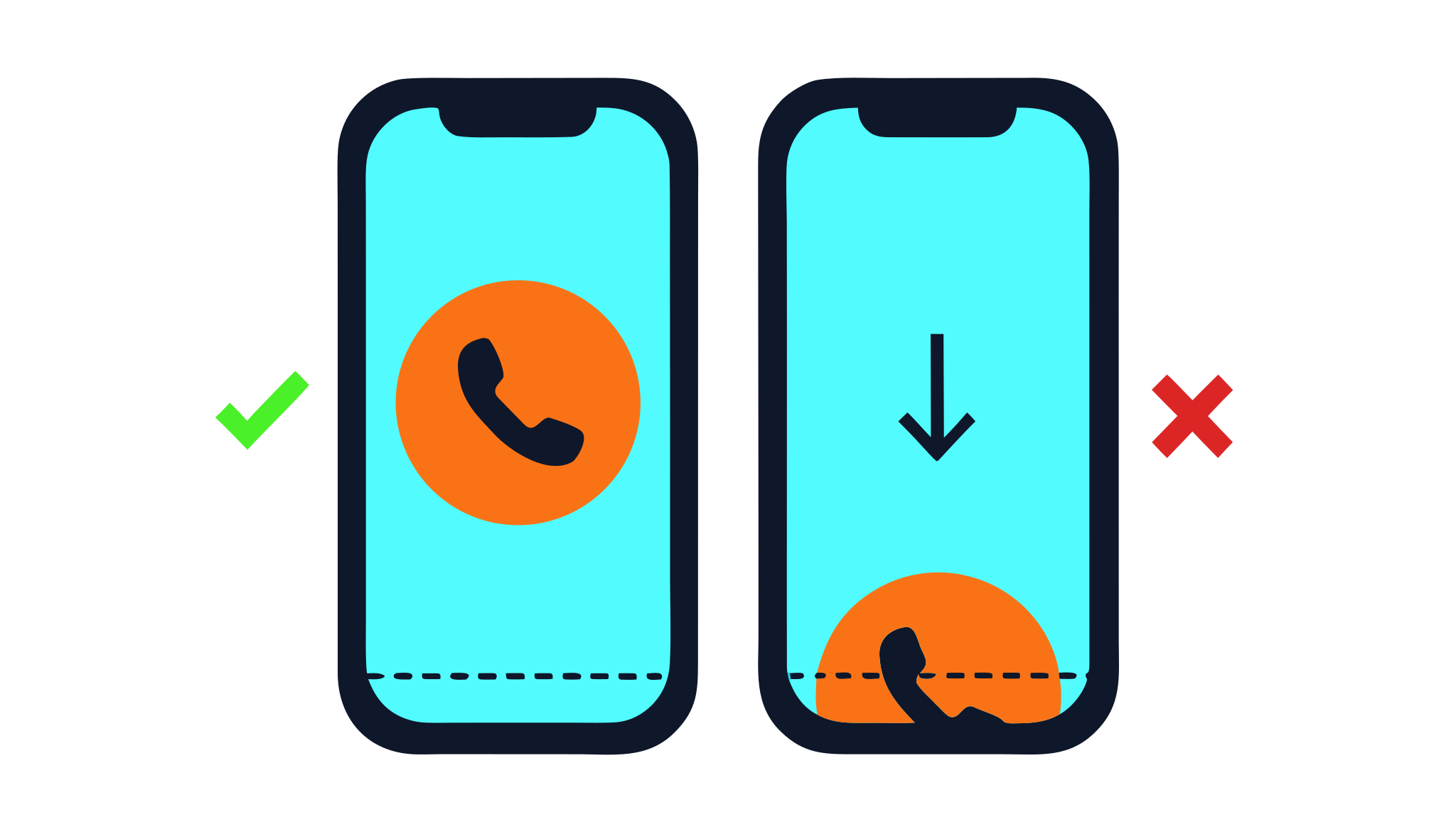
Most visitors are on a phone, and the call button is the point of the page. Treat it that way.
- Make the number a tap-to-call link, so one tap starts the call. A plain number in text forces the visitor to copy it or remember it.
- Put the call button where it is visible without scrolling, and keep it visible or easy to reach as the visitor reads.
- Show the number itself as text as well, for people on a computer who will dial it from their phone.
- Keep one primary action. A page with a form, a chat widget and three buttons asks the visitor to decide how to contact you before they have decided to.
Short supporting text is enough above the button: who you are, what you help with, and what to expect on the call. The rest can sit below for those who want to read more.
Say who you serve and when
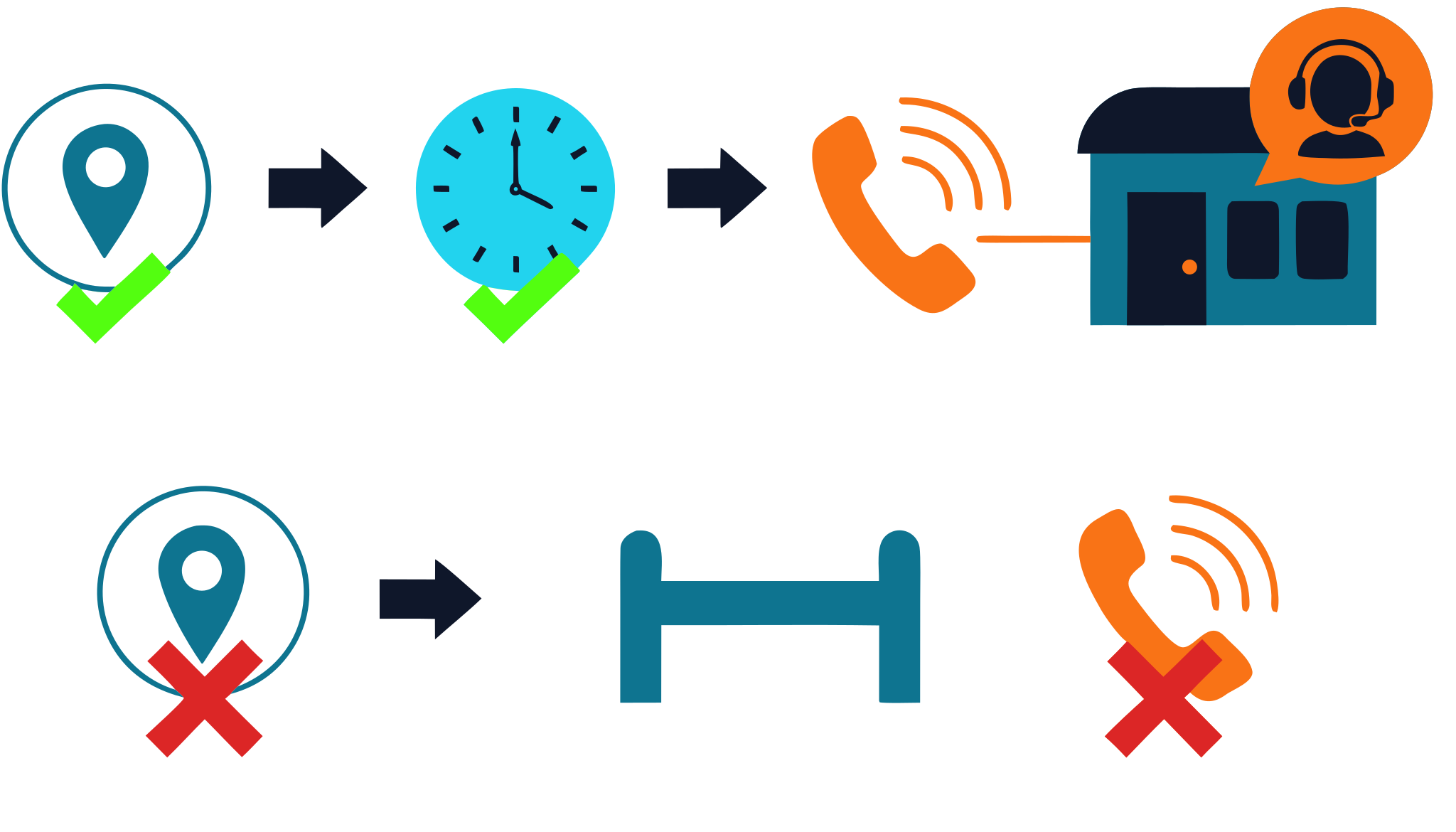
Offers pay for qualified calls, and a call from outside the geography or outside the advertiser's hours usually does not qualify. The cheapest way to avoid paying for those calls is to tell visitors before they call.
- State the area plainly, using the places the offer covers, so someone outside it can see that before dialling.
- State the hours the advertiser answers, and match them to the offer's terms. A call outside those hours will not be answered.
- Use the offer's own rule as the source. It is published on the offer, so you never have to guess what counts.
A page that is clear about who it is for will usually get fewer calls than one that is vague. That is the intention: more of the calls it does get are the kind that qualify.
What to put on the page
- A short explanation of the problem and how the service helps, written for someone in a hurry.
- What happens on the call: who will answer, what they will ask, and what the caller needs to have to hand.
- Facts the advertiser has approved about the service, and nothing beyond them.
- Local relevance where it is true, such as the areas served.
- A few honest answers to the questions people ask before calling, such as whether the call is free, what the service covers and how quickly someone can help, where the advertiser confirms the answers.
- A notice that calls may be recorded, if the offer records them. LeadsRefer's own call page shows one automatically for offers that record calls.
What to leave out
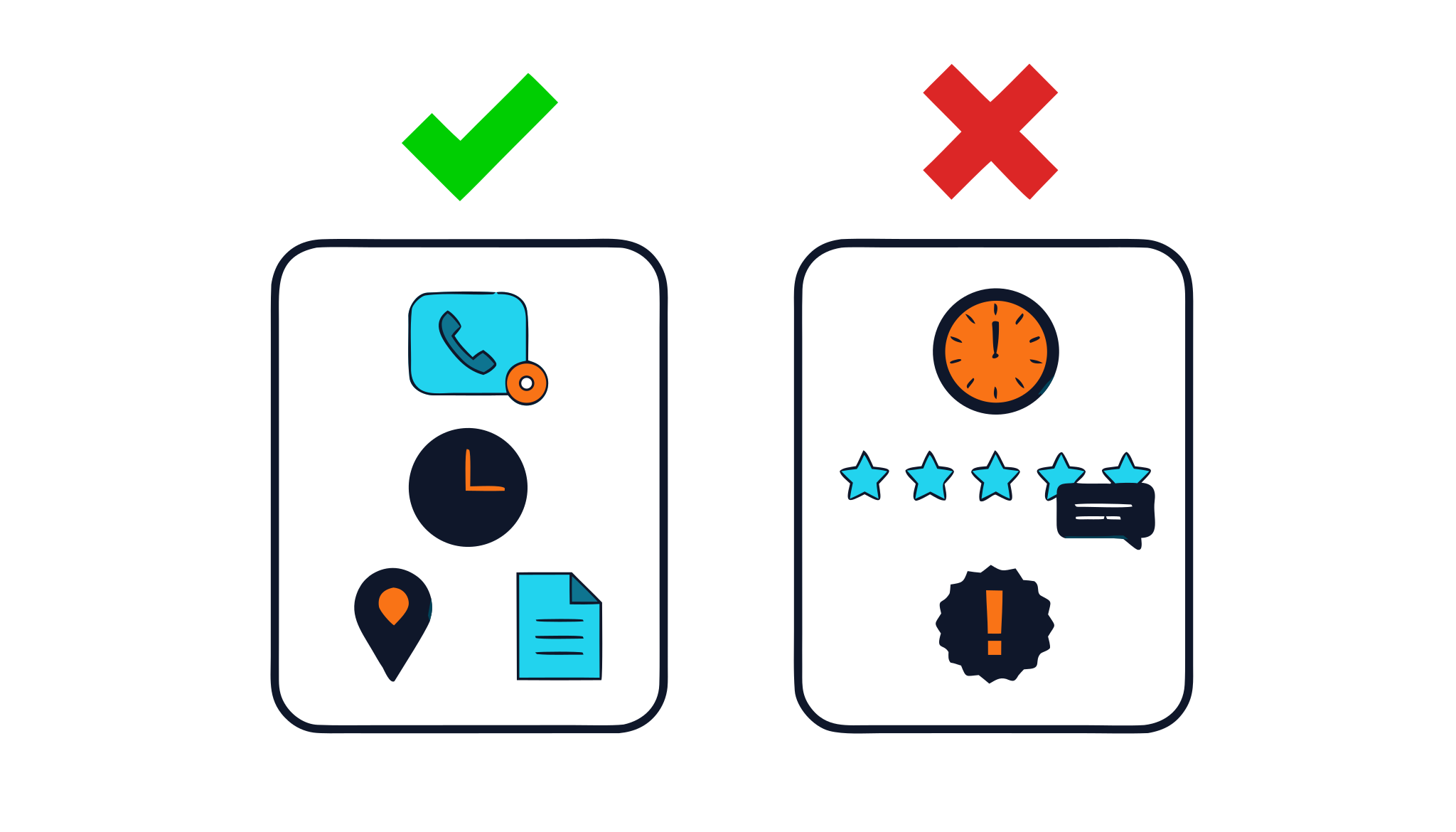
- Countdown timers, fake scarcity and urgency that is not real.
- Reviews, testimonials, star ratings or awards that are not real, or that you cannot prove.
- Guarantees and promises about outcomes that you cannot control, such as that something will be covered or approved.
- Anything that implies you are the advertiser, an insurer, a government body or a named local business when you are not.
- Claims the advertiser has not approved, and brand names or trademarks the offer says not to use.
- Pop-ups and overlays that cover the call button.
These are the points that get traffic rejected and affiliates removed, and in regulated categories they can also create legal risk for you and the advertiser. Check the offer's prohibited traffic list before you publish. This is general information, not legal advice.
Make it fast and mobile-first
- Design for a phone first, then check it on a computer. Most callers will not be at a desk.
- Keep the page light. A visitor with a problem will not wait for large images, scripts or a slow ad stack to load.
- Test on a real phone and a slow connection, not only on a fast computer.
- Check that the call button works on the phones you are targeting, and that tapping it opens the dialler.
Tracking: one number per source
Every call is credited by the number that was dialled, so the number on the page is what ties a call to your traffic.
- Use the tracking number issued to you for the offer, and never the advertiser's own number.
- Each offer allows a small number of numbers per affiliate, so plan which sources get one. A number that sits unused is eventually released.
- For web traffic, add a SubID to your tracking link so your reports show which source produced each result.
- Check that the number works before you spend, and look at your dashboard to confirm the first calls appear.
Your dashboard lists every call with its status, including calls that did not qualify, so you can tell a page that is not converting from one that is not connecting.
Test and measure
- Start with one page for one offer and one traffic source.
- Judge it by calls that qualify, not by clicks and not by total calls. A page that produces many calls that do not qualify is working against you.
- Change one thing at a time, such as the headline, the position of the button or the wording about the area, so you know what made the difference.
- Give each change enough traffic to show a pattern before you decide.
- Keep the version that produces more qualified calls and build the next test from it.
Read the rejected calls as well as the qualified ones. If many fail on the same rule, such as length or geography, the page is probably setting the wrong expectation.
How this works on LeadsRefer
- Once you are approved on an offer, you get a tracking number of your own for it, and the offer page lists the payout, geography and call rules to write your page around.
- If you have no page, your tracking link sends the click to a simple tap-to-call page that shows your number, and it carries a recording notice for offers that record calls.
- Tracking links accept a SubID, and your dashboard and reports show every call by status.
- Every account and every offer application is reviewed by hand, and you describe your pages and creative when you apply.
Browse the live offers for the rules to build around, see how to start as an affiliate for the sign-up and approval steps, or apply as an affiliate.
Common mistakes
- Sending traffic to the advertiser's own site, so calls cannot be credited.
- A page that does not match the ad.
- Burying the call button, or making visitors copy the number.
- Staying vague about the area and hours and paying for calls that cannot qualify.
- Adding fake urgency or fake reviews.
- Changing five things at once and learning nothing.
Most of these are cheap to fix. A clear page that matches its ad and puts the call first will usually beat a clever one.
Frequently asked questions
- What is a pay per call landing page?
- A web page built to turn a click into a phone call. Unlike a lead page it has no form to fill in. It confirms the visitor is in the right place and makes calling the easiest next step, usually with a large tap-to-call button and the tracking number.
- Do I need my own landing page for pay per call?
- Not necessarily. You can run call-focused ads that lead straight to a call where the platform allows it. On LeadsRefer, if you have no page of your own, your tracking link sends the click to a simple page that shows your tracking number as a tap-to-call button.
- Can I send traffic straight to the advertiser's website?
- You should not. It shows the advertiser's own phone number, so a call it produces cannot be credited to you. The number dialled is what ties a call to your traffic, so use the tracking number issued to you for the offer.
- Should a pay per call page have a form?
- Usually not. A form adds a second action and turns the page into a lead page. Some offers prohibit approaches where you contact the consumer afterwards, so check the offer's terms before collecting any details.
- How do I know whether a landing page is working?
- Look at the calls that qualify, not at clicks or total calls. Your dashboard lists every call with its status, including those that did not qualify. Change one thing at a time and give each change enough traffic to show a pattern.
- What should never appear on a pay per call landing page?
- Fake countdown timers, invented reviews or ratings, guarantees about outcomes, claims the advertiser has not approved, and anything that suggests you are the advertiser, an insurer or a government body. Each offer lists its prohibited traffic, so read it before you publish.
Keep reading
- How to start in pay per call as an affiliate: from sign-up to your first payoutA step-by-step guide to becoming a pay per call affiliate: sign up, get approved, apply to offers, get your tracking number, run traffic and get paid.
- Live transfers vs leads vs inbound calls: what each one is and how to chooseLive transfers, leads and inbound calls explained side by side: how each reaches a buyer, what consent each needs, how quality is checked, and how to choose.
- What is pay per call? A plain-English guide for affiliates and advertisersPay per call explained: how it works, who pays whom, what makes a call qualified, how payouts are set, and how to start as an affiliate or an advertiser.
Ready to start?
Browse the live offers to see each payout, geography and call rule, then apply as an affiliate. If you buy calls, apply as an advertiser.